Jenkins
Automation platform that lets you build, test, and deploy automations using pipelines.
Jenkins Infrastructure
- Master Server = Controls the pipelines & schedules builds
- Agents/Minions Servers = Run the builds
Jenkins Build Types
- Freestyle Builds - shell scripts that are run on servers based on specific events.
- Pipeline Builds - Use Jenkins files to define declaritively on how to deploy the build in different stages.
Jenkins GUI
- Manage Jenkins: This contains all of the settings that you need for your Jenins instance such as plugins, global settings, etc.
System Configuration/Configure SystemSystem Configuration/Manage PluginsSystem Configuration/Manage Nodes & Cloud: This is where you setup agentsSecurity/Manage Credentials: This where you storeSSH keysorAPI tokensTools and Actions/Prepare for Shutdown: You need to use this when you are performing and upgrade or maintanence if you just shutdown the server without doing this step then you will interrupt jobs that are running.
Setting up Freestyle Jenkins Projects
-
Go to the Jenkins Dashboard then click on New Item. The two most popular types of projects are
freestyleandpipelines -
Pick the type of job and give it a name. Make sure to not to put spaces in the name
-
From the build options:
-
Source Code Managementis usually alwaysGitand Jenkins will pull that repo that is specified here. You also will mention any branches if you need specific ones. -
Then we have
Build Triggers: You would usually using GitHub webhooks but you need to make sure the firewall or port is open on the Jenkins server so that it can work with the webhook.Build Periodicallyis used to build jobs on a schedule using cron jobs. -
Build Enviornments: Good to select the 'Delete Workspace' option to clean up any artifacts from previous runs
-
-
Build:- Most common option is
Execute Shell
- Most common option is
-
Post-Build: Like email notifications -
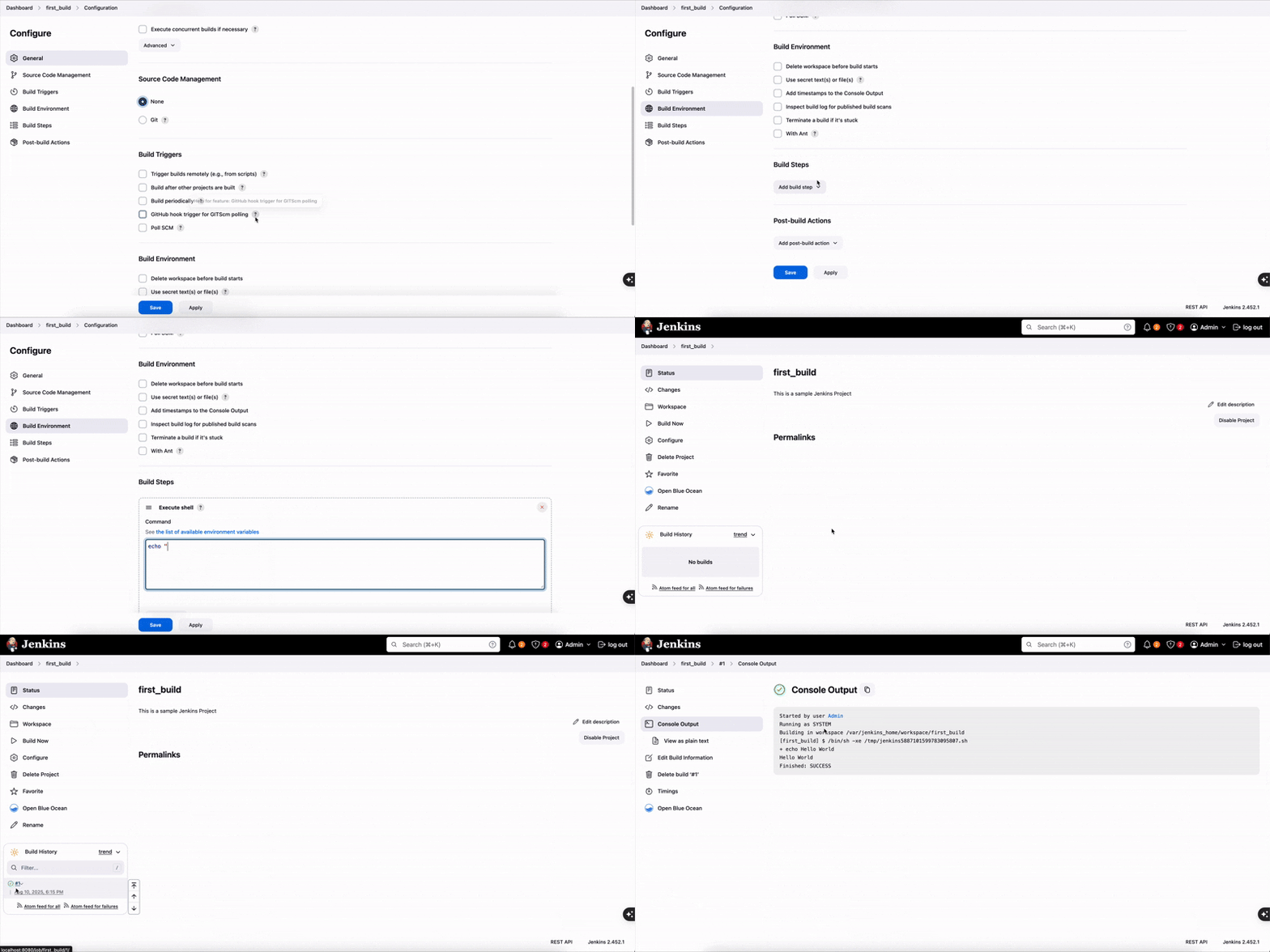
After clicking and saving on the build - from the job dashboard you can click
Build Now
-
Click on
Configurefrom the Build Homepage to change any settings -
Enviornment Variable:- To see what env variables your build has access to go to
Configureon the build and then scroll to Build Steps and check theExecute Shellstep and click on "See the list of available environment variables" Main Enviornment Variables: -BUILD_ID: Gives you the current build ID and you can use this for docker images -BUILD_URL- To see use enviornment variables
${VAR_NAME}in your shell script
- To see what env variables your build has access to go to
-
Reading Console Output:
- Any line in the console that is prefixed with a plus sign
+means that is a command that is being run
- Any line in the console that is prefixed with a plus sign
-
Workspace: If there are files that are created and managed by your build they will show up in Jenkins on the Project homepage under the Workspace folder
Jenkins Filesystem
cd /var/jenkins_homethis will take you to the home directory of Jenkins on the Master Server- Within this folder you can navigate to the
workspacedirectory and this is the directory that will contain all of your builds with their job names as the folder name. Within the build folders will be any artifacts of the build. - Within the jenkins_home repo also contains other important places to troubleshoot such as:
plugins: Contains a list of all the plugins installed on your Jenkins instanceupdates: This contains a list of all the updates that happenedlogs: Houses the log files on the server
Setting up a Python Build with a GitHub Repo
-
Go through the same steps as above when it comes to creating a simple freestyle project but the main thing here is you want to put the GitHub URL in the
Source Code Managementsection. Note: if the repo is private then you would need to add credentials so Jenkins could clone it but if its public then no credentials are needed -
Since we want to execute a Python build we need to first make sure Python is installed on our master and Jenkins agents. Can do this by remoting into the server and just running the python command in the shell -
python or python3 -
Then just run the script from the repo
python3 script_name.py -
This is valuable because you can run python jobs via Jenkins anytime you want without having to SSH into servers so if you setup a scheduled build from Jenkins thats linked to a Python script from a repo you can run it fairly smooth
Setting up Jenkins Agents/Workers
-
Go to
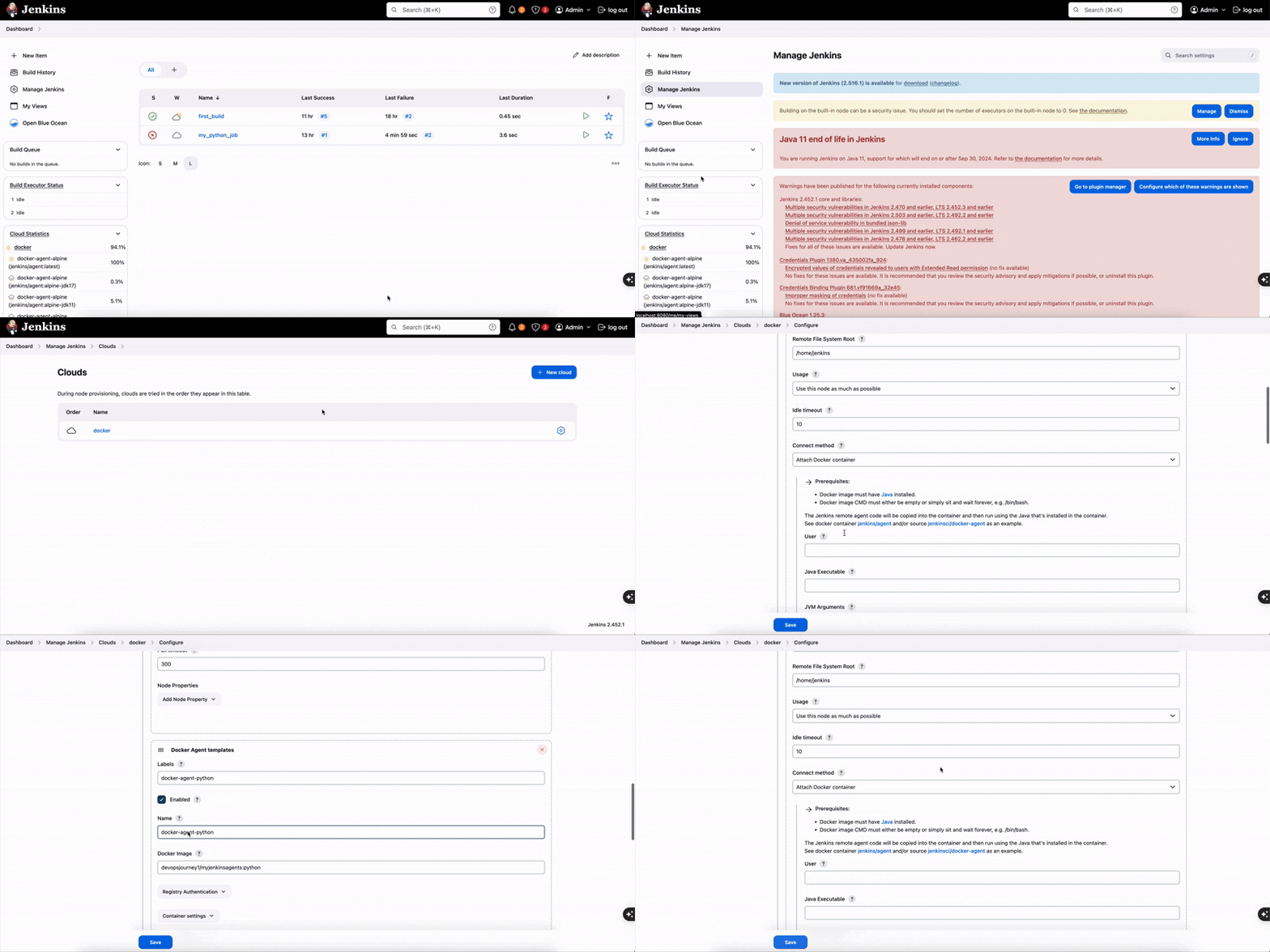
Manage Jenkins/Nodesand this where you will see the Jenkins Master and Nodes/Agents that are setup Configure Cloud is how you build out cloud agents like Docker to use instead of pernanet ones. -
To create a
Dockeragent go toCloudthen go to install plugins which will automatically filterCloud Providersand install Docker then restart Jenkins -
You can login to the
Master Jenkins Nodeand go to the logs and plugins folder to also verify if the plugin is installed. Also, refreshing the Jenkins page might need to be done as the UI will hang on the refresh portion after installing the plugin -
Now you can go back to the
Configure Cloudoption under nodes and add Docker. -
Setting up Docker:
- Need to provide the
Docker Host URIwhich can be another server or if you want to do it locally you can use Docker Desktop and an alpine image in the URI field need to put in tcp://IPAddress that is generated After entering in the dataset it to enabledthentest connection
- Need to provide the
-
Creating the
Docker Agent Template:-
Go back into the configured Docker agent and then click on the gear icon and then navigate to
Docker Agent Templatesand then click on Add -
Key Terms: -
Labels: This is used to help the Master node determine which agent to send the build too. -Docker Image: This will be the official image that you will be using. -Instance Capacity: This defines how much instances of the agent will be created. -Remote File System Root: This defines where the workspace for this agent will be created - default:/home/jenkins
-
Configuring Jobs to Agents
-
Go to the Job Name then click on "Configure" then under General click on the check box for
Restrict where this project can runand now put in the name of the docker agent template then click save -
Now when you build the job it will use the specific agent that you assigned the docker-alpine label too. Note: It's important that you use the correct image because outdated ones will keep your job in pending state as it won't be able to find a live agent since an incorrect image will lead to provisioning errors
-
For these Docker Jobs on the same screen of the Console Output you will see a tab called
Built on Dockerwhich shows the container details. -
This helps you troubleshoot because some agents might not have the required software like Python3 so if you assign this agent template that does not have python to a build that requires it then it will error out. In this scenario you should create your own Docker Image that has python installed
-
To create another agent you just need to go back to the
Docker Agent Templateand then create another template.
Adding Jenkins Triggers
- Build Triggers/
Poll SCM: Jenkins Master will periodically check github for any changes and its much easier to manage then setting up webhooks.- It uses cron notation
Setting up Jenkin Pipelines
-
Similair to how we created freestyle projects you need to go to
New Itemand then click onPipeline. You will notice that at the top most of the settings are the same but you have less freedom with pipelines for advanced settings as most of the steps are carried out by thePipeline Scriptsection. -
There are two ways to build out the pipeline script and both ways use the
Groovy Syntax:Directly in the UIJenkinsfile
Jenkin Pipeline Syntax
- Everything is wrapped in a
pipelineparameter {} - First step in the pipeline is to select the
agentthat will carry out the job and it is specified by thelabelparameter - Next step is the
Stages: This is where you define your stages like building -> testing -> deploying - When you create a Pipeline Build you can see a section for Pipleline Overview which will show you all of the stages you built.
Jenkinsfile
-
Instead of putting the script directly into the UI of Jenkins you can create a
Jenkinsfilewithin the parent folder of your code repository and then outline all of the deployment steps in this special file -
Within the Pipeline build in Jenkins, you need to change the pipeline from using Pipeline Script to use
Pipeline Script from SCMthen add the github repo. Make sure you put theJenkinsfilepath in theScript Path -
When you get the pipeline from SCM it will add a first step where it sees if it can checkout from SCM without any errors.
| Standardized Jenkinsfile | |
|---|---|
1 2 3 4 5 6 7 8 9 10 11 12 13 14 15 16 17 18 19 20 21 22 23 24 25 26 27 28 29 30 31 32 33 34 35 36 37 38 39 40 41 42 43 44 45 46 47 48 49 50 51 52 53 54 55 56 57 58 59 60 61 62 63 64 65 66 67 68 69 70 71 72 73 74 75 76 77 78 79 80 81 82 83 84 85 86 87 88 89 90 91 92 93 94 95 96 97 98 99 100 101 102 103 104 105 106 107 108 109 110 111 112 113 114 115 116 117 118 119 120 121 122 123 124 125 126 127 128 129 130 131 132 133 134 135 136 137 138 139 140 141 142 | |
Settings up Jenkins Agents on Windows Server
- Need to make sure the version of Java that you install on the Windows Server is the same one that is installed on the Jenkins Controller
- To find the version, go to
Manage Jenkinsthen go toSystem Informationand search for java.home -
Adding these Nodes:
- Click on Manage Configurations and then go to Nodes and create a new node
- Provide a name and then click on
Permanentthis it is not a cloud or dynamic server. - The remote root directory will be a path on the server:
d:\tools\jenkins-agent - If you leave the
labelblank it will take on the name of the agent. - Usage needs to be set as only when using the label name
-
WebsocketIf you don't select this option then you need to just make sure you open a specific port on the agent so that it can communicate with the master viatcp. When you save this in the Jenkins Master it will save the connection type but will be marked with a red X because you need to connect the agent to the master. If you click on the red X it will give you commands to run on the agent -
For exectuable services you can leverage
WinSWwhich is a wrapper for any executable so that it can be run as a Windows Service- The way this works is you rename the WinSW ex as your jenkins agent and then need an xml file that defines what it runs
- The arguments in the xml come from the Jenkins UI when you click on the red X
- The agent.jar also comes from this locaton after you click on the red X
- After you start the service then it will connect to the master
Jenkins Multibranch Pipelines
-
Creating a
GitHub App: Go to GitHub and click on Settings then go to Developer Settings then create the GitHub App and Set the permissions. Then set the subscribe events like push, repository, and other events. -
To add credentials in Jenkins: Click on
Manage Jenkins\Credentialsthen click on the Global one and then add credential and add for a GitHub app. PAT (personal access token) gives you a lot less GitHub limits whereas a GitHub app lets you call to GitHub a lot more -
Create a new item and select
Multi-Branch Pipeline:- For branch sources select GitHub
- If you dont have a Jenkinsfile then there will be no build configuration since you are selecting builds based on this type of file
-
The way the multibranch pipeline works is that Jenkins scans the repo for every branch name and allows you to see that in the app homepage view:
On Different Branches you can modify the Jenkinsfile so that different things can be carried out
For Example, you can create stages in the pipeline based on a specific type of branch
stage('fix branch){
  when{
    branch "fix-*"
  }
  steps{
    sh ```
    cat README.md
    ```
  }
}

stage('merge pr){
  when{
    branch "pr-*"
  }
  steps{
    echo "this is for prs"
  }
}
Dealing with Pull Requests: Now you need to create a PR to merge this branch back into themainwhich will in this scenario also update the root jenkins file so going forward each type of branch will have a specific pathway- Pull Requests also show up in the Jenkins build page for the multibranch pipeline
- Any PR or branch that has a strikethough means that it was already
merged and then the branch deletedso it no longer exists These go away next time a scan occurs